PTZ Control
PTZ Controls
Feature Description
Definition
Users can control a PTZ device to adjust the shooting angle and focal length of a PTZ-capable camera, widening the coverage of cameras and improving video image clarity.
Customer Benefits
Users can view live video from different angles, widening the situation awareness area and reducing hardware costs.
Users can adjust the camera lens to a specified angle, improving operation efficiency.
Application Scenario
When a suspicious person is detected, an operator can control the PTZ device to view the live video of the suspicious person.
Requirements
NE |
Version Requirement |
License Requirement |
Function |
|---|---|---|---|
HWT-IVS1800 |
11.1.0 and later versions |
N/A |
Provides the PTZ control function. |
iClient S100 |
V1.6.0 and later versions |
N/A |
Provides the PTZ control function. |
Application Limitations
Tour setting:
- Maximum number of tours supported by a camera: 8
- Maximum number of preset positions supported by a tour: 20
- Duration that a camera stays at each preset position: 30s to 3600s. The default value is 30.
- Maximum number of tour plans that can be configured for each tour: 1
- Maximum number of tour plans that can be configured for a camera: 8
PTZ control setting:
- Number of PTZ rotation speed levels: 10
- Maximum number of preset positions supported by a single camera: varies depending on the camera capability; 128 or 256 in typical scenarios
- Waiting duration range of the home position: 30s to 3600s. The default value is 300.
- Automatic PTZ unlock duration range: 5s to 600s. The default value is 300. The value 0 indicates that the PTZ device is not automatically unlocked.
- PTZ control priority: There are 32 PTZ control priority levels for users to control the PTZ device when the PTZ device is locked. A smaller value indicates a higher priority. The value 1 indicates the highest priority. When the PTZ device is unlocked, the PTZ control priority is not distinguished.
The Micro Cloud does not support connection to network keyboards.
Feature Configuration
Context
- PTZ control functions include controlling PTZ cameras and setting preset positions and tours.
- If the invoked preset position is not a home position, the PTZ camera automatically rotates to the home position if no PTZ controls are performed before the configured waiting duration elapses.
Prerequisites
You have used PTZ dome cameras or other PTZ-capable cameras and set Type properly to use PTZ functions.
For details about how to set the camera type, see 5.
Scenario Description
Client |
Feature Support |
Reference |
|---|---|---|
LDU (only HWT-IVS1800-D/HWT-IVS1800-E) |
Supported |
Complete the configuration by referring to this section. |
iClient S100 |
Supported |
For details, see PTZ Controls. |
Configuring Preset Positions and the Home Position
This section uses a PTZ dome camera as an example.
- Log in to the LDU as the admin user. (
 Logging In to the LDU)
 - Drag a camera from Camera List to a live video pane, as shown in Figure 4-25.
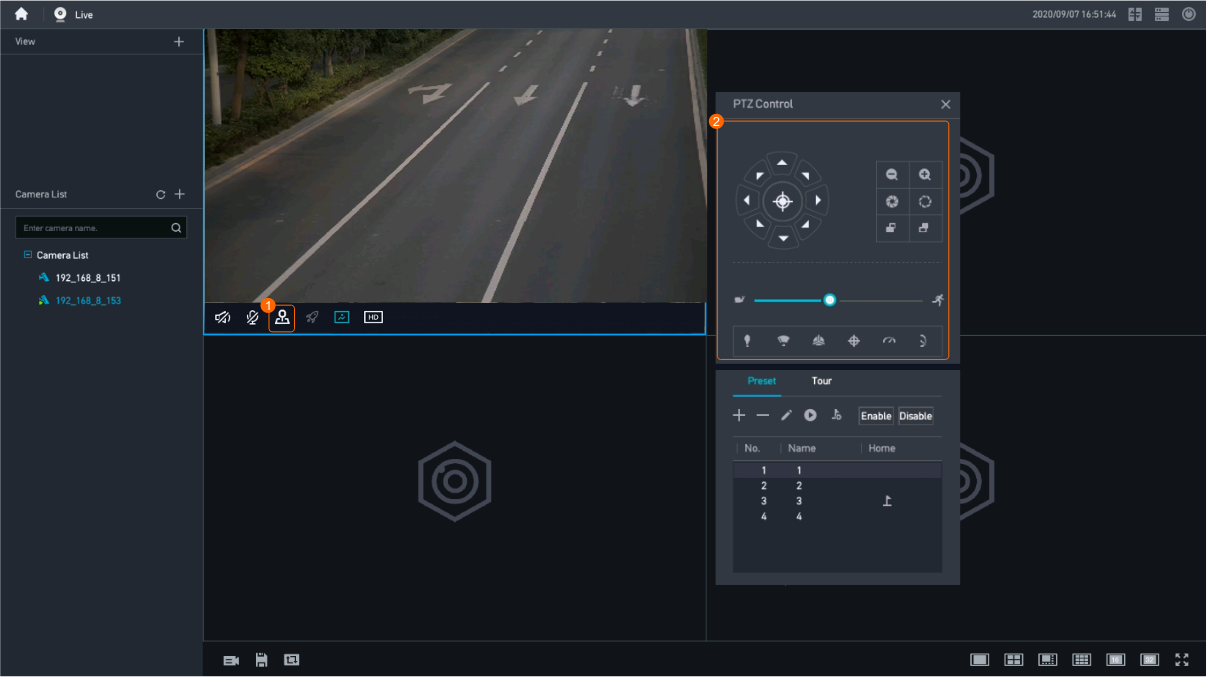
- Adjust the camera to a proper detection position, as shown in Figure 4-26.
Table 4-23 describes basic PTZ functions.
Table 4-23 Function descriptionIcon
Function

Allows you to rotate the PTZ device to adjust camera's shooting angle.

Allows you to drag the slider to control the rotation speed and step of the PTZ.
Drag the speed slider to the left to decrease the rotation speed and step.
Drag the speed slider to the right to increase the rotation speed and step.

Zooms in or out on the live video image.

Increases or decreases the aperture.

Adjusts the focal length of the camera.

Enables or disables the illuminator.

Enables or disables the wiper.

Rotates the PTZ device to the home position.

Quickly locates a position on the GUI through the intelligent 3D positioning function.

Allows you to view live video from the camera that is performing a horizontal tour.
The horizontal tour function allows unidirectional or back-and-forth scanning in either a clockwise or counter-clockwise direction at a specified degree (including 360°).

Allows you to view live video from the camera that is performing a vertical tour.
The vertical tour allows unidirectional or back-and-forth scanning in either a clockwise or counter-clockwise direction at a specified degree.
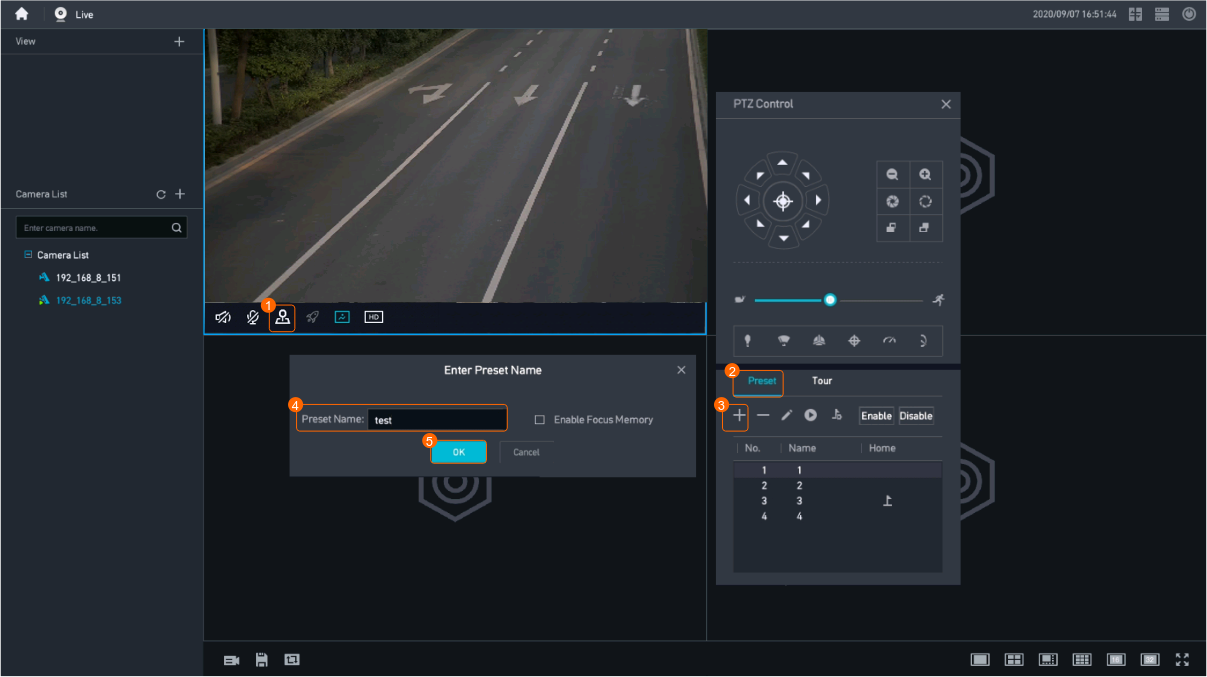
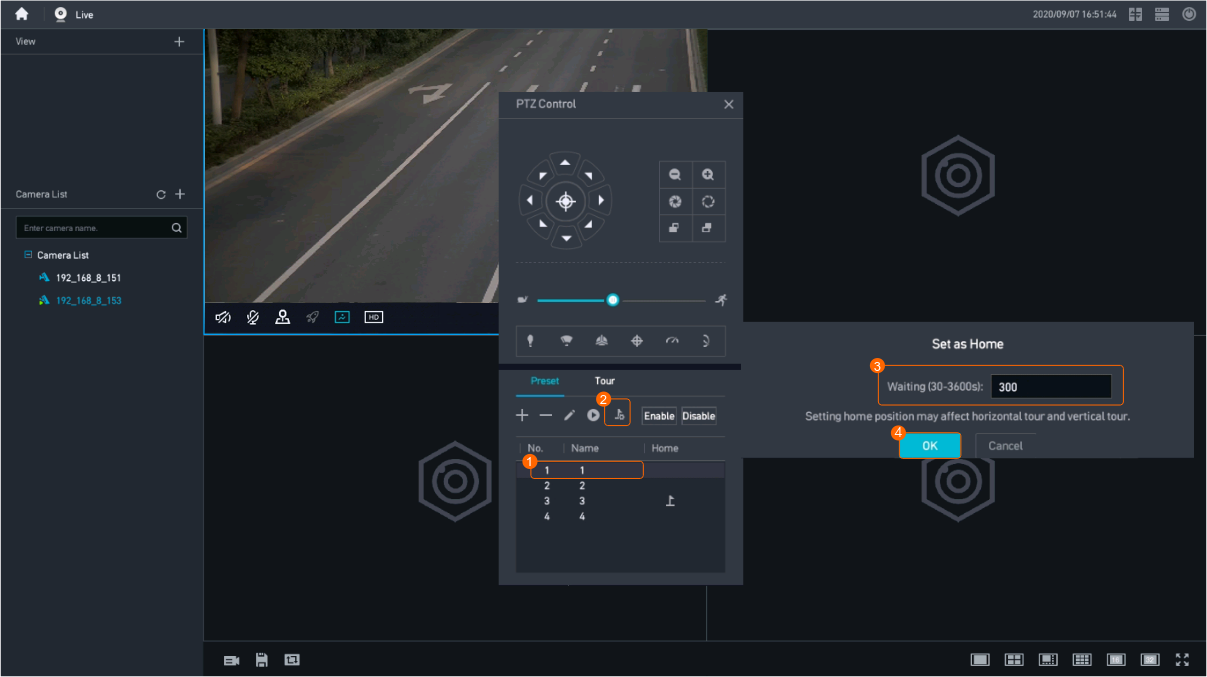
- Configure a preset position, as shown in Figure 4-27.
Table 4-24 describes the parameters.
Table 4-24 Parameter descriptionParameter
Setting
Preset Name
Set the name of a preset position as required.
Enable Focus Memory
If you need to frequently invoke preset positions, you are advised to select Enable Focus Memory.
When you invoke a preset position, the lens is steered to the preset position and automatically adjusts the focusing position for clearer images. However, if the lens frequently adjusts the focusing position, the lens life span will be shortened.
When Enable Focus Memory is selected, the lens record the current focusing position. If you set the current position as a preset position, the camera does not automatically adjust the focusing position based on the image quality when the preset position is invoked later. Instead, the lens is directly switched to the recorded position. As a result, the image may be blurry. Determine whether to select Enable Focus Memory based on the site requirements.
- Repeat 3 through 4 to configure more preset positions. If you need to configure only one preset position, skip this step and go to the next step.
- Configure the home position, as shown in Figure 4-28.
After the home position is configured,
 is displayed on corresponding preset positions.
Configuring a Tour and a Tour Plan
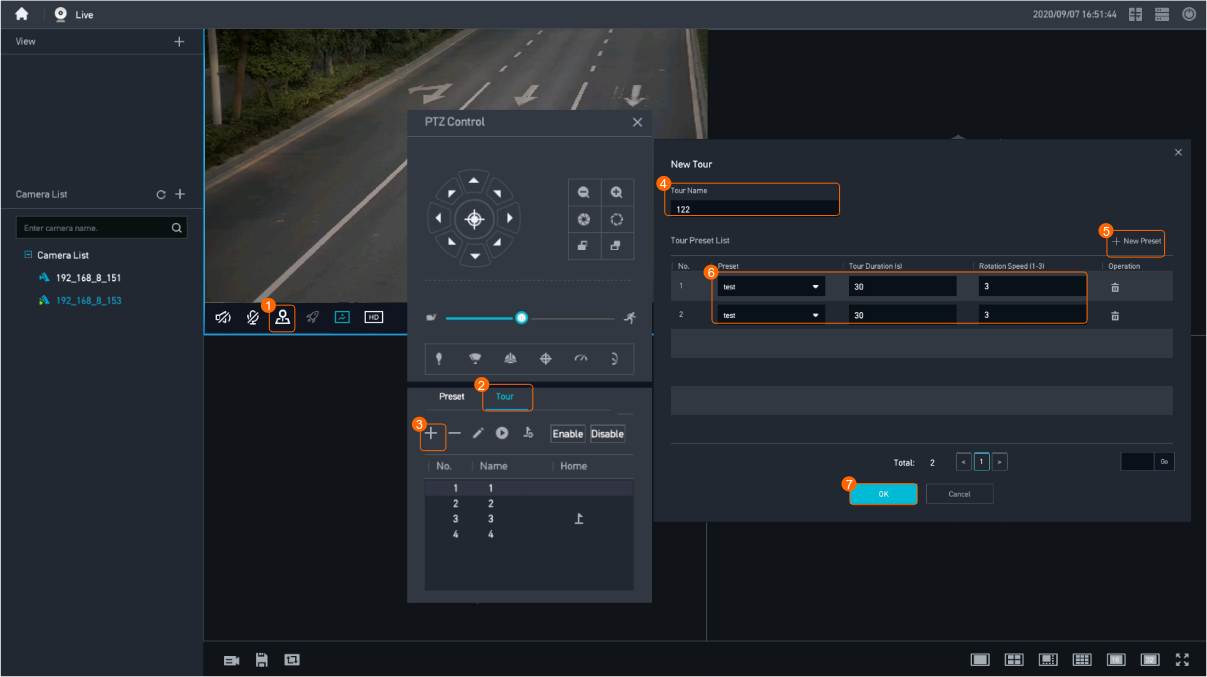
- Configure a tour, as shown in Figure 4-29.
Table 4-25 describes the parameters and buttons.
Table 4-25 Parameter/Button descriptionParameter
Setting
Tour Name
Set the name of a tour as required.
New Preset
Click this button to add a preset position. A minimum of two preset positions need to be added and a maximum of 20 preset positions are supported.
Preset
Select a preset position from the drop-down list box.
Tour Duration (s)
Set the tour duration for each preset position.
A short tour duration may shorten the service life of the camera motor and belt. If the preset positions do not need to be frequently switched onsite, you are advised to increase the tour duration (for example, over 60 seconds).
Rotation Speed (1-10)
Set the tour speed for each preset position.
The value ranges from 1 to 10, and the default value is 5.
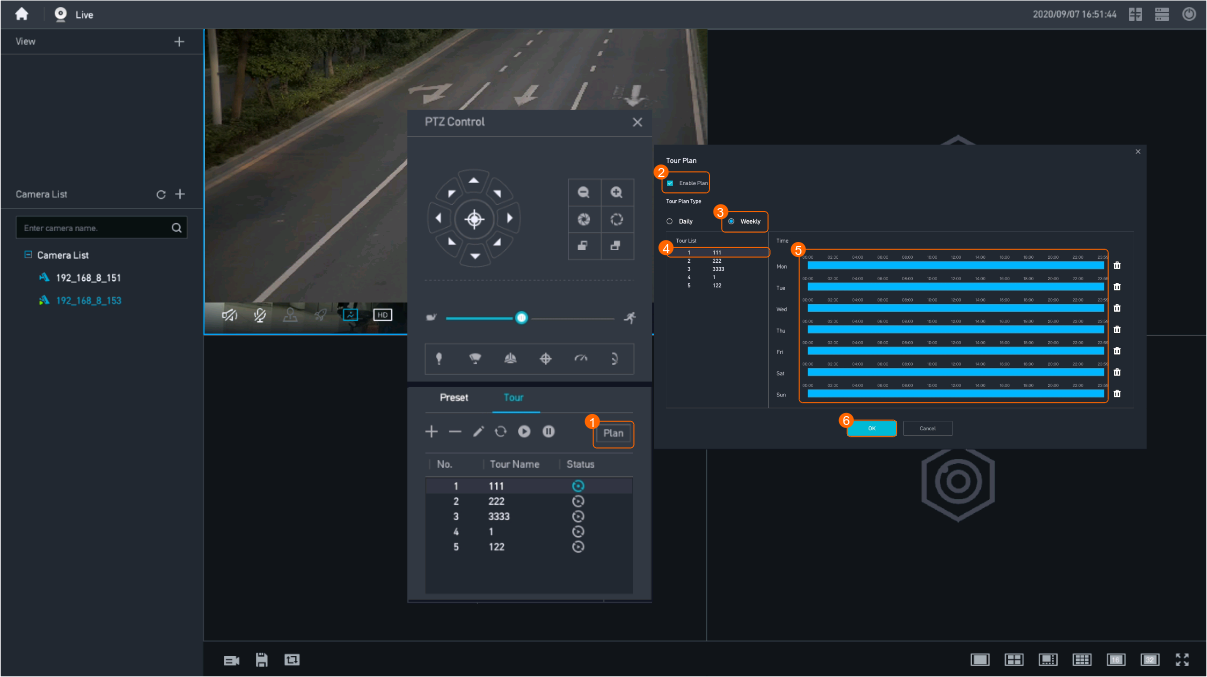
- Configure a tour plan, as shown in Figure 4-30.
Feature Verification
Verifying Preset Positions and the Home Position
- Log in to the LDU as the admin user. ( Logging In to the LDU)
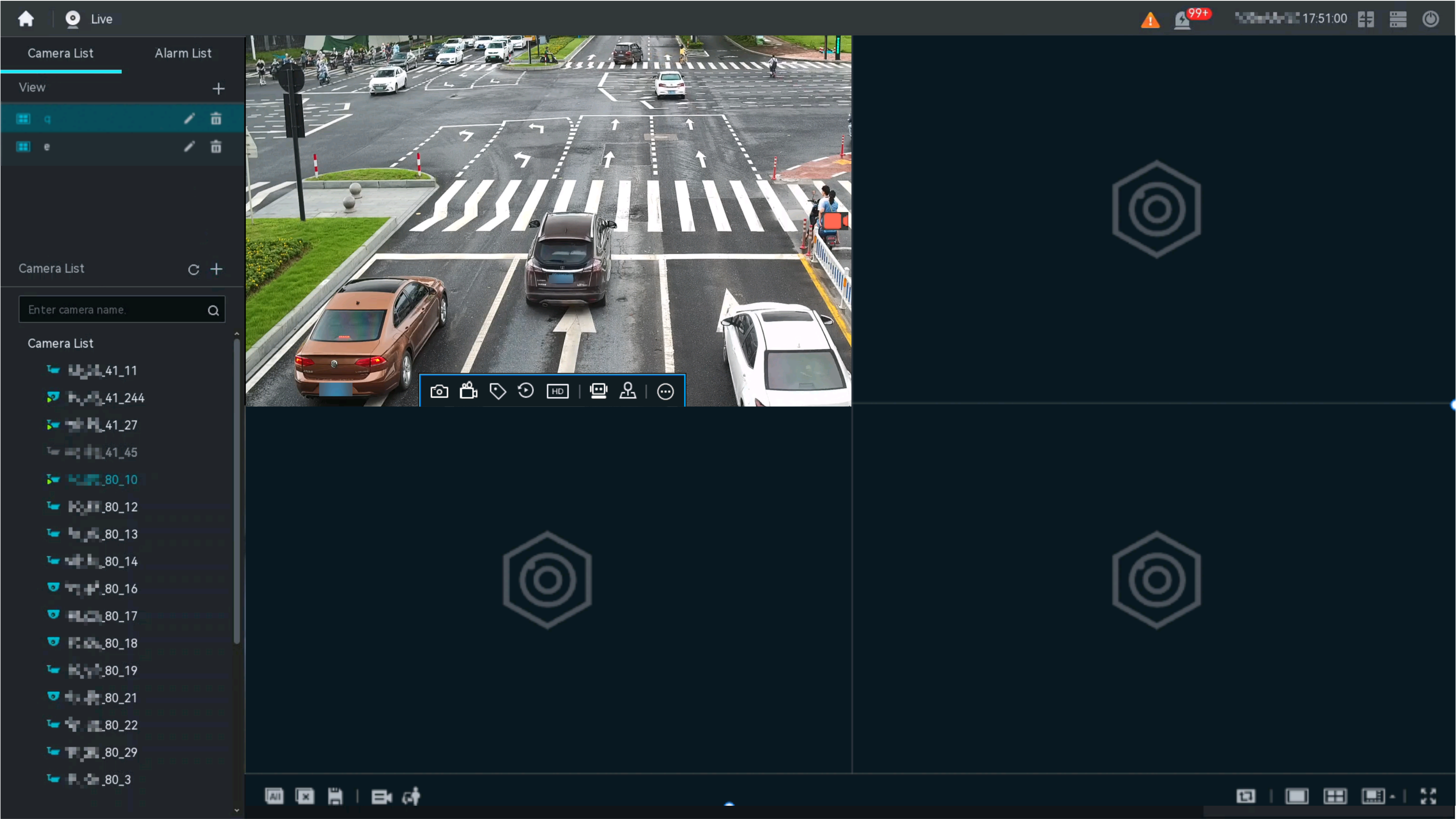
- Drag a camera from the camera list to a live video pane, as shown in Figure 4-31.
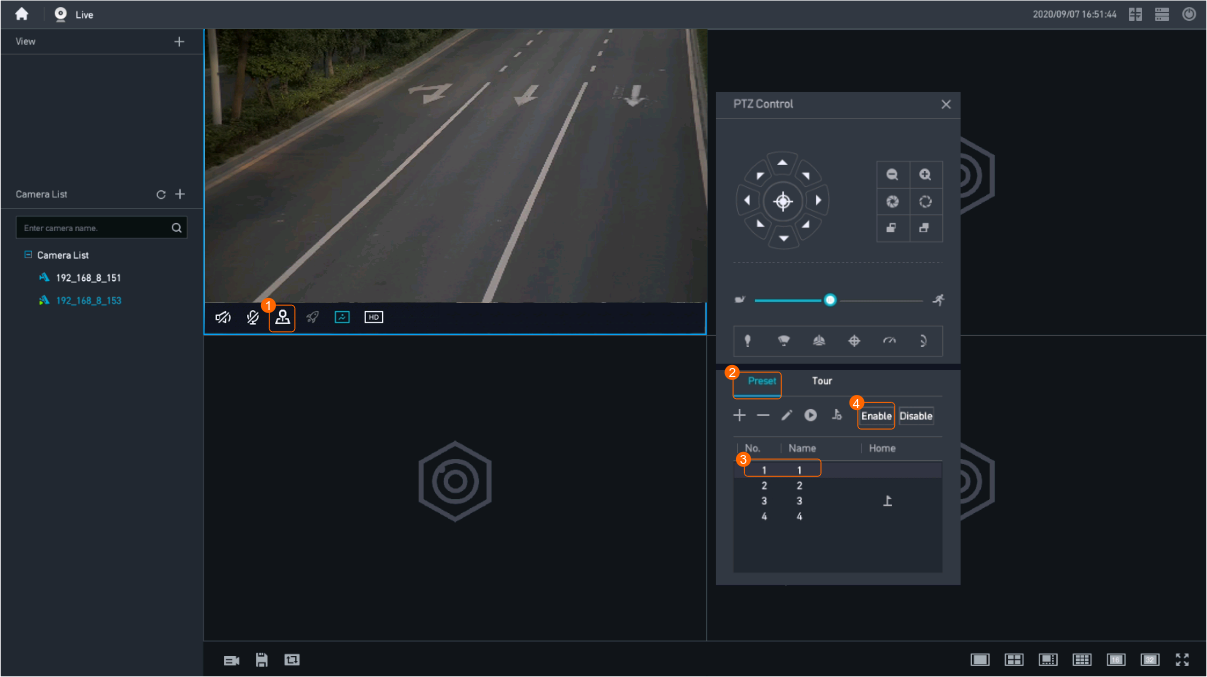
- Invoke a preset position, as shown in Figure 4-32.
The preset position is successfully invoked, and the camera rotates to the preset detection position.
- View the live video and check whether the camera rotates back to the home position after the duration specified by Waiting Duration in 6 elapses.
The home position must be different from the preset position. Otherwise, you cannot perceive image change in the live video.
Verifying a Tour and a Tour Plan
- Log in to the LDU as the admin user. ( Logging In to the LDU)
- Drag a camera from Camera List to a live video pane, as shown in Figure 4-33.
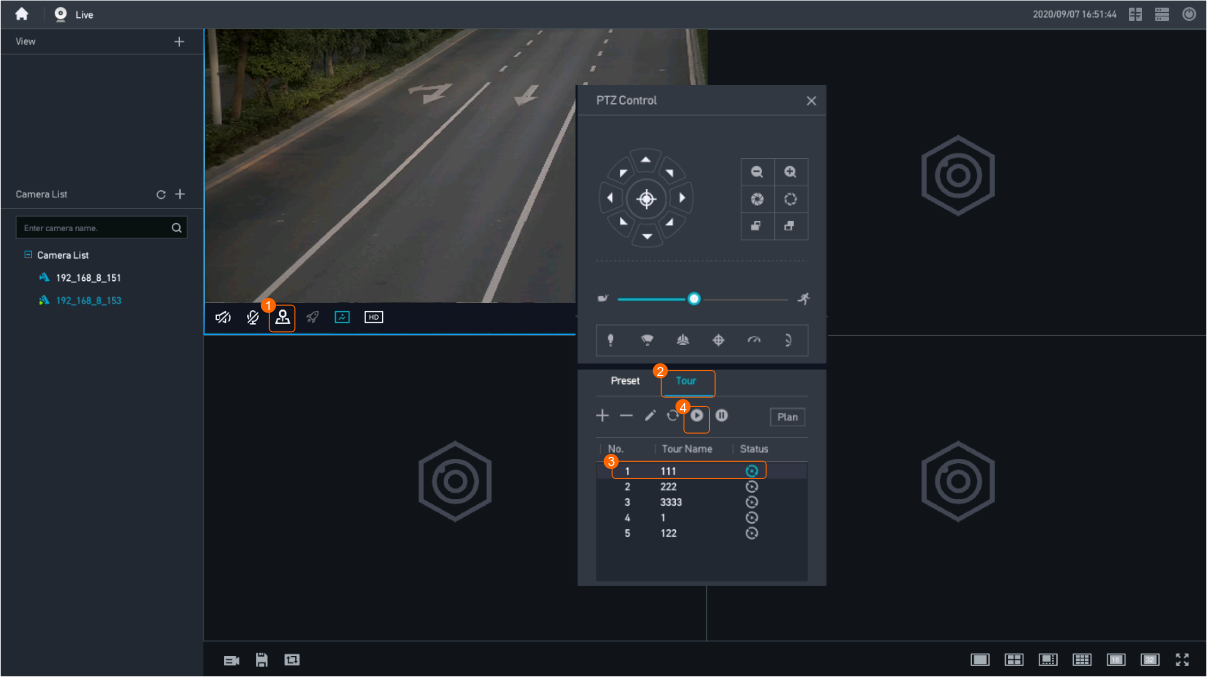
- Execute a tour, as shown in Figure 4-34.
The tour is successfully executed. The camera goes on the tour configured in Figure 4-29.
- Check whether the camera goes on the configured tour in the specified tour plan period on a day.
Intelligent 3D Positioning
Feature Description
Definition
Users can zoom in on, zoom out on, and center the selected video image, quickly meeting viewing requirements.
Customer Benefits
Users can view the details and surrounding environment, improving user experience.
Application Scenario
An operator zooms in on the license plate of a vehicle in a video image to quickly recognize the license plate.
Requirements
NE |
Version Requirement |
License Requirement |
Function |
|---|---|---|---|
HWT-IVS1800 |
11.1.0 and later versions |
N/A |
Provides the intelligent 3D positioning function. |
iClient S100 |
V1.6.0 and later versions |
N/A |
Provides the intelligent 3D positioning function. |
Application Limitations
The camera must support 3D positioning.
Feature Configuration
Scenario Description
Client |
Feature Support |
Reference Document |
|---|---|---|
LDU (only HWT-IVS1800-D/HWT-IVS1800-E) |
Supported |
For details, see Configuring Live Video Viewing. |
iClient S100 |
Supported |
For details, see PTZ Controls. |
Feature Verification
Procedure
- Log in to the LDU as the admin user. ( Logging In to the LDU)
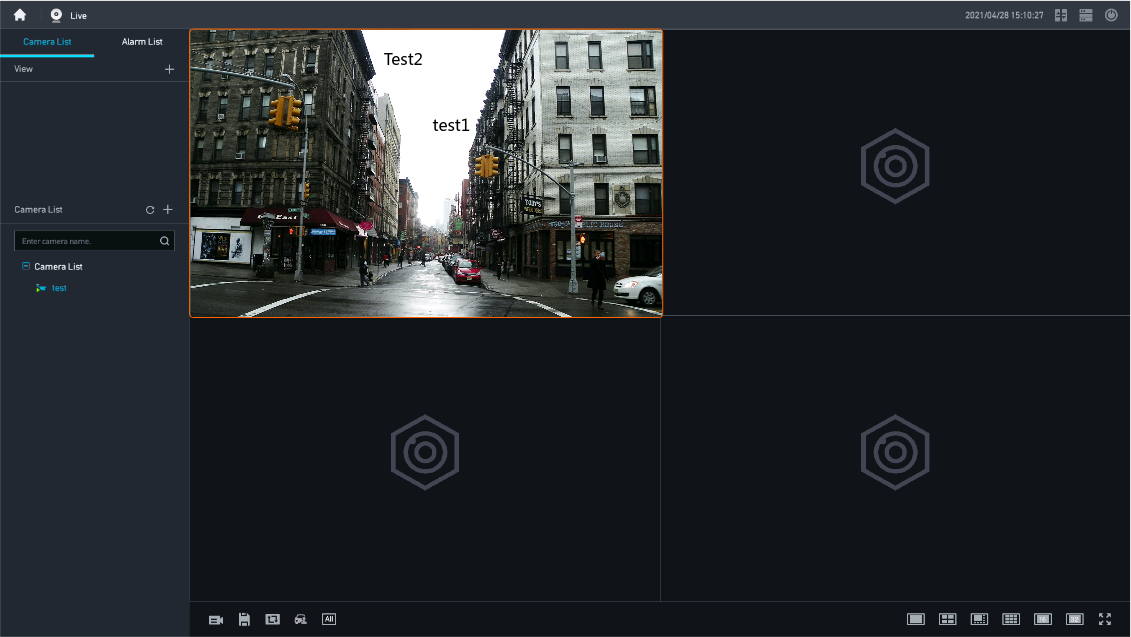
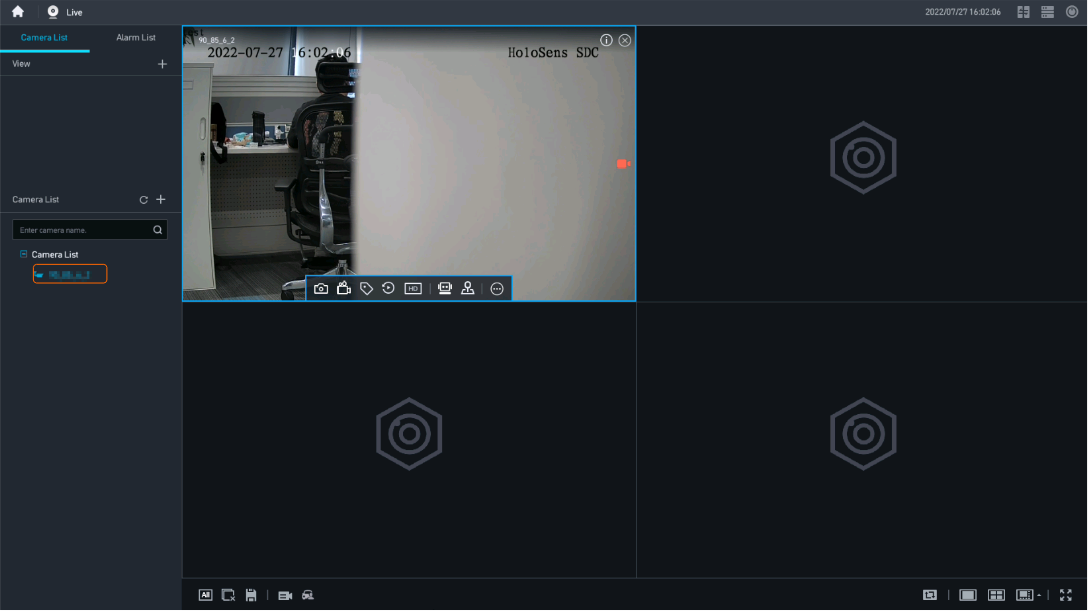
- Drag a camera from the camera list to a live video pane, as shown in Figure 4-35.Figure 4-35 Viewing live video

- Do not enable media security under . Otherwise, a blank screen may occur during live video viewing on the LDU.
- If dual screens are used, the monitor connected to the HDMI1 port of the HWT-IVS1800 is the primary screen by default, where you can perform operations such as parameter setting on GUIs. The monitor connected to the HDMI2 port of the HWT-IVS1800 is the secondary screen, where you can only view live video.
You can click
 in the upper right corner of the page to switch between the primary and secondary screens. After the switchover, the original primary screen becomes the secondary screen and supports only live video viewing. The original secondary screen becomes the primary screen and supports operations such as parameter setting.
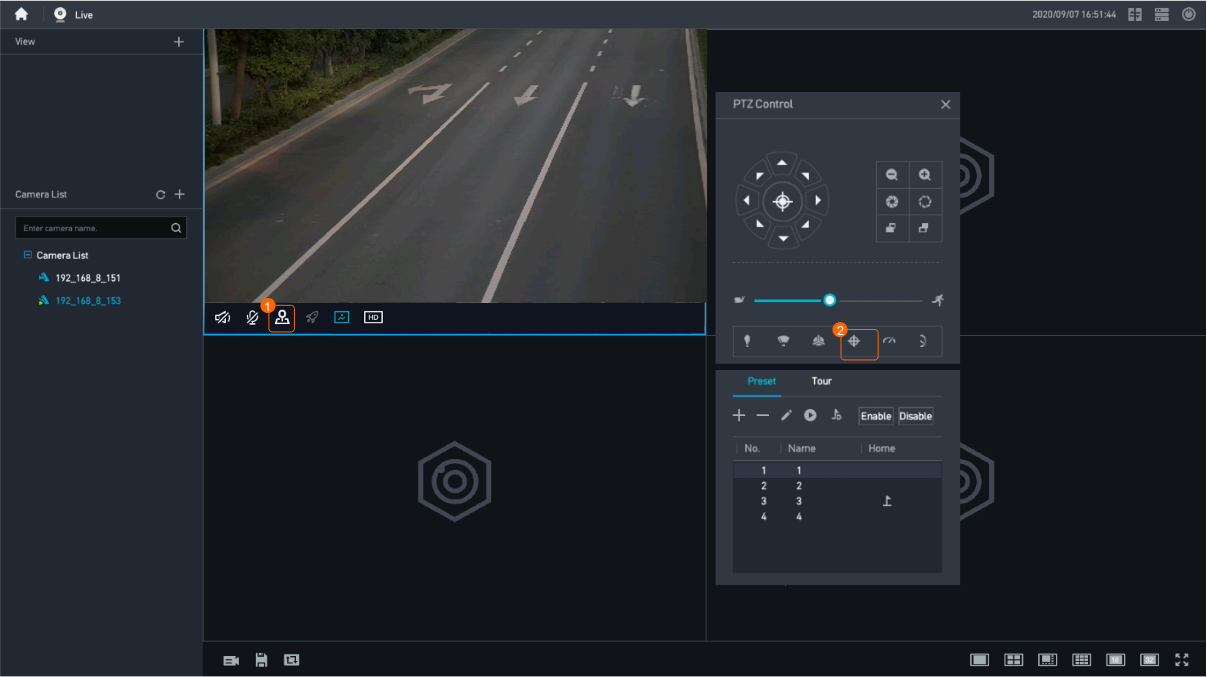
- Access the PTZ control page of the camera, as shown in Figure 4-36.
- Click
 to start 3D positioning.
- Zoom in on an area and display it in the center.
You can drag a box from left to right on the live video image. The area inside the box is automatically zoomed in and displayed in the center of the video image.
- Zoom out on an area and display it in the center.
You can drag a box from right to left on the live video image. The area inside the box is automatically zoomed out and displayed in the center of the video image.
- Center a position.
You can click a position on the live video image. The camera rotates until the position becomes the center of the video image.
- Zoom in on an area and display it in the center.